AEO & GEO
Optimize Webflow Site for AI Search: 7 Simple Steps
16 min read

Adam Khaled
Founder, Web25
Adam Khaled
Founder, Web25
Quick answer: To optimize a Webflow site for AI search, make sure AI crawlers can read your pages, then add schema markup, an llms.txt file and clear answer-first content using Webflow’s own settings. Most of it is free and takes an afternoon. None of it guarantees citations, but it removes the common reasons AI tools skip a site.
Web25 builds and looks after websites on both Webflow and WordPress, and one question keeps coming up from Webflow owners: what do I switch on so ChatGPT and Google’s AI can find me?
This checklist shows how to optimize Webflow site for AI search, one setting at a time, using Webflow’s own help articles and the official Google and OpenAI documentation.
AI search tools, such as ChatGPT search, Google’s AI Overviews and Perplexity, only quote pages they can fetch and understand. A good-looking Webflow site can still be skipped if a bot is blocked, a page has no clear answer, or the key facts are hidden in images.
The platform itself is rarely the problem. When we fetched a page from Webflow’s own blog as raw HTML in October 2026, the full article text was in the response, with no scripts needed to show it.
That gives a Webflow site a sound start, but the defaults do not do the rest. Our Webflow vs WordPress guide reaches the same conclusion: both platforms can rank well, and the setup decides the result.
No. Google states this directly, and it shapes how much effort each step below deserves.
In its guide to AI features in Search, last updated in December 2025, Google says: “You don’t need to create new machine readable files, AI text files, or markup to appear in these features.” It adds that there is no special schema.org structured data you need to add.
So the first steps below, such as letting bots in and writing clear pages, matter most. Schema and llms.txt are extras that cost little. Our guide on how to appear in Google AI Overviews covers the Google side in more detail.
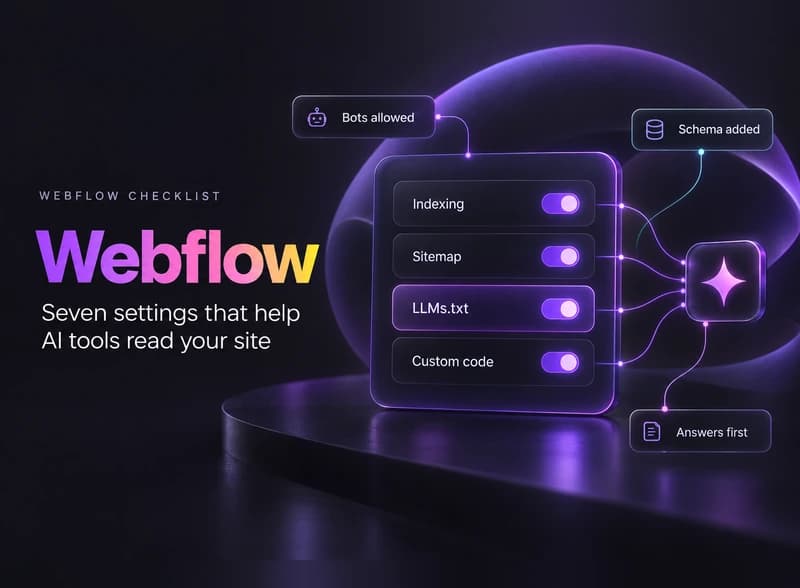
To optimize Webflow site for AI search, work through these seven steps in order: check your pages are readable, let the right bots in, set titles and a sitemap, add schema, add llms.txt, write answer-first pages, and track the result. Most take under an hour on a small site.
Open a key page, add view-source: in front of the address in Chrome, and search for a sentence from the page. If you find it, bots that do not run JavaScript can read it. Our guide on whether AI crawlers read JavaScript explains why this matters.
Pay extra attention to text that arrives after the page loads, such as content pulled in by a script from an outside tool. That is the type of text most likely to be missing.
Go to Site settings, then SEO, then Indexing, and read your robots.txt rules. If you have never added rules, nothing is blocked. The mistake to look for is a leftover rule such as Disallow: / under User-agent: *, which Webflow’s help page lists as the example for blocking all bots from your entire site.
OpenAI runs separate bots for separate jobs. OpenAI’s crawler page says OAI-SearchBot surfaces sites in ChatGPT search, and sites opted out of it will not be shown in ChatGPT search answers.
GPTBot is a different setting, and OpenAI says each setting is independent. A safe starting point looks like this:
User-agent: OAI-SearchBot
Allow: /

User-agent: *
Allow: /

Sitemap: https://yourdomain.com/sitemap.xml
Webflow also lets you send a Content-Signal header, which sets whether your content can be used for AI training, search and AI-generated responses separately. The example on Webflow’s robots.txt page ends with ai-input=no. Copy that line blindly and you may be telling AI tools not to use your content in answers, so set each value on purpose.
If you also put a service like Cloudflare in front of your site, it can block AI crawlers on its own. Our article on Cloudflare’s AI crawler defaults shows how to check.
Give every important page its own plain title and meta description in Page settings. Write what the page is about in the words a customer would use, not a slogan.
Then check your sitemap. In Site settings, SEO, Sitemap, Webflow can auto-generate a sitemap if you switch the toggle on. Submit the sitemap address in Google Search Console so Google knows where to look.
Schema markup is hidden code that labels your pages for machines, such as which text is your business name or which page is a blog post. Webflow adds it through custom code: Site settings, Custom code, Head code for the whole site, or Page settings, Inside head tag for one page.
Here is a small Organization block you can adapt for your homepage:
<script type="application/ld+json">
{
  "@context": "https://schema.org",
  "@type": "Organization",
  "name": "Example Studio",
  "url": "https://www.example.com",
  "logo": "https://www.example.com/logo.png",
  "sameAs": [
    "https://www.linkedin.com/company/example-studio"
  ]
}
</script>
Each of these code areas holds up to 50,000 characters, and Webflow’s custom code article notes that custom code needs a Core, Growth, Agency or Freelancer Workspace or an active Site plan. For blog posts and other CMS pages, Webflow explains custom code in the CMS.
Keep the markup honest. Google’s structured data guidance and its AI features guide both say structured data should match the visible text on the page. Our schema markup for AI search guide shows which types to use and how to test them.
An llms.txt file is a short Markdown file that lists your most useful pages for AI tools. In Webflow, go to Site settings, SEO, LLMs.txt, click Upload file, choose a UTF-8 file under 100 KB, and save. After you publish, it appears at yourdomain.com/llms.txt on your custom domain, but not on the webflow.io staging address.
Webflow’s own help article calls the format experimental and says its effects on AI search are unclear. That matches what Google says. Add it after the earlier steps, not instead of them, and follow our step-by-step guide to creating llms.txt.
Open each important page with a direct answer in the first two or three sentences, then explain. Use question-style headings, short paragraphs, a table where it helps, and a few FAQs that the page does not already answer. Our guide on how to optimize content for LLMs goes through this in full.
Check each page against one test: could a stranger find the answer from the first paragraph alone? If not, move the answer up. Put key facts in real text, not only inside images or animations. Add alt text to your images in the Assets panel, and Webflow applies it wherever you use the image.
Once a month, ask ChatGPT, Perplexity and Google five or six questions a customer would ask, and note whether your site is named or linked. Check Google Search Console and your analytics for visits from AI tools as well. Our guide to AI search tracking shows three free ways to do this.
Keep a simple note of the date, the question and the answer each time. After two or three months you can see whether your changes made a difference, which beats guessing.
If your plan allows it, Webflow can do part of the tracking for you, as the next sections explain.
All of the steps above live in a handful of places in Site settings, Page settings and the Assets panel. This table collects them.
| What | Where in Webflow | What to do |
|---|---|---|
| robots.txt rules | Site settings, SEO, Indexing | Make sure no rule blocks all bots, and allow OAI-SearchBot |
| Content-Signal header | Site settings, SEO, Indexing | Set each value on purpose, do not copy the example |
| Sitemap | Site settings, SEO, Sitemap | Turn on auto-generate, then submit it in Search Console |
| llms.txt | Site settings, SEO, LLMs.txt | Upload a UTF-8 file under 100 KB, then publish |
| Schema, whole site | Site settings, Custom code, Head code | Paste JSON-LD such as Organization |
| Schema, one page | Page settings, Inside head tag | Paste JSON-LD that matches that page |
| Image alt text | Assets panel | Describe the image in a short, plain sentence |
| AI visibility tracking | Insights, Webflow AEO | Optional, needs a Team or Enterprise plan |
Webflow AEO is Webflow’s built-in tool for tracking and improving how AI tools see your site. According to Webflow’s help center, it has two parts: analytics that show how often your organization appears in AI answers and which AI bots visit, and agents that recommend fixes to metadata, schema, alt text and broken links.
It requires a Team or Enterprise plan with Workspace AI turned on, the analytics also need the Analyze add-on, and the agents use Webflow AI credits each time they run. Nothing changes on your site until you accept a recommendation.
Most small business sites do not need it to get started. The seven steps above cover the basics for free, and the monthly check in step 7 shows whether they are working. AEO makes more sense for larger sites with many pages, where fixing metadata by hand takes too long.
The common mistakes are leftover settings and markup that does not match the page.
A setting cannot make a thin page worth quoting. AI tools pick pages that answer the question clearly, so the writing and the facts on the page do most of the work.
No setting, plugin or file can make anyone cite you, and anyone who promises that is guessing. What you can do is remove the technical reasons to be skipped, then keep publishing useful pages. Our article on brand mentions in ChatGPT explains what else affects whether a brand gets named.
Web25 is our agency. This guide covers it alongside alternatives.
A Webflow owner can do every step above alone, and the settings are free apart from your plan. There is no need to pay anyone for that part.
If you would rather have the whole site checked, including how bots reach your pages, the schema, the llms.txt file and the content, that is part of our SEO, GEO and AEO service. Web25 works on Webflow and WordPress, so the advice follows what suits your site, not one platform. On WordPress, use the guide to optimize WordPress for AI search.
Mostly, yes. Webflow publishes normal web pages that crawlers can fetch, so the basics are in place. What it does not do for you is write clear answers, add schema markup or check that your robots.txt rules let the right bots in. Those are the parts to review.
For most steps, yes. Webflow's help center says custom code needs a Core, Growth, Agency or Freelancer Workspace or an active Site plan, and adding a robots.txt file needs a Site plan or a paid Workspace plan. Webflow AEO, the built-in tracking, needs a Team or Enterprise plan.
Paste a JSON-LD block into the custom code area. Use Site settings, Custom code, Head code for markup that applies to every page, or Page settings, Inside head tag for one page. Each area allows 50,000 characters. For blog posts, Webflow explains how to add code to CMS template pages.
That is your choice, and it does not hide you from ChatGPT search. OpenAI says its bots are independent: OAI-SearchBot decides whether you appear in ChatGPT search results, and GPTBot relates to training its models. Many businesses allow OAI-SearchBot and decide on GPTBot separately.
The effect is unproven. Webflow's own help article calls llms.txt experimental and says its effects on AI search are unclear, and Google says you do not need AI text files to appear in its AI features. It is cheap to add, so treat it as an optional extra.
There is no fixed time. OpenAI says it can take about 24 hours for its systems to adjust after a robots.txt update, but content changes and citations depend on when each tool next visits and whether your page answers the question better than others do.
Neither wins by default. Both can be set up well or badly, and the choice depends on who edits the site and how much control you need. Our Webflow vs WordPress guide compares them on cost, upkeep and AI search readiness.
Start with step 2. Open Site settings, SEO, Indexing and read your robots.txt rules, because a single leftover rule can undo everything else. If you would like a second pair of eyes on your Webflow site, book a discovery call.
Written by Adam Khaled, Founder, Web25. Last updated October 2026.

Agentic SEO means AI agents doing SEO work, not just suggesting it. What it is, what Google allows, the real risks, and when a small site should skip it.
Optimize WordPress for AI search in 8 checks: the Reading setting, robots.txt, bot-blocking hosts, one schema plugin, page builders, sitemaps and llms.txt.

Dynamics 365 ecommerce integration, step by step: find out which Dynamics 365 you run, pick a connector or custom API, plan for API limits and test first.