AEO & GEO
Optimize WordPress for AI Search: 8 Checks
14 min read

Adam Khaled
Founder, Web25
Adam Khaled
Founder, Web25
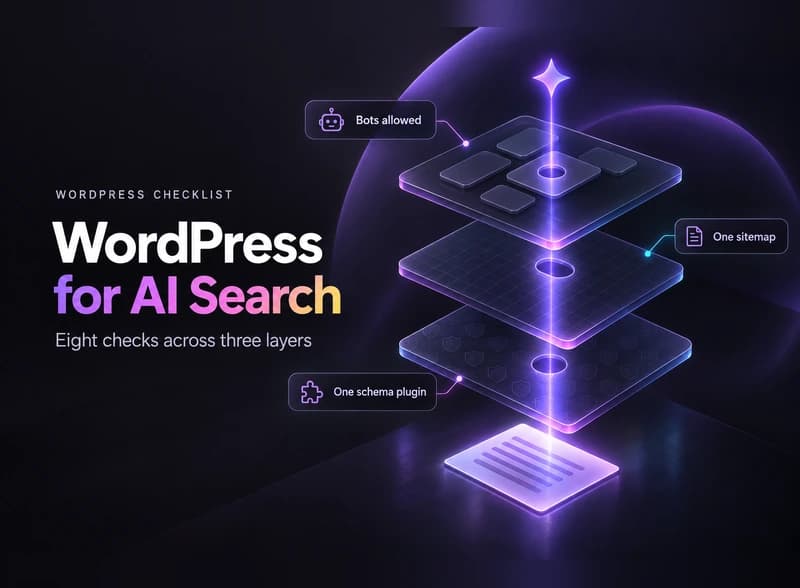
Quick answer: To optimize WordPress for AI search, check eight things across three layers. At the host, make sure no firewall or CDN rule blocks AI bots. In WordPress, untick the Reading setting that discourages indexing and read your robots.txt. In your SEO plugin and theme, keep one sitemap, one schema source and readable page HTML.
Want a second opinion? Book a discovery call and tell us your host and SEO plugin.
No. Google’s guide to AI features (updated December 10, 2025) says you don’t need to create new machine readable files, AI text files or markup to appear in those features. A page must be indexed and eligible to be shown in Google Search with a snippet to be a supporting link in AI Overviews or AI Mode.
So to optimize WordPress for AI search, you mostly remove blockers, and they hide in three layers. The host, CDN or firewall sits in front of your site and can refuse a bot before WordPress runs. WordPress core controls the Reading setting and the default robots.txt.
Your SEO plugin and theme control the sitemap, the schema and the HTML of each page. The checks below follow those layers. For the wider strategy, see answer engine optimization.
Checks 1 and 2 happen in your dashboard and browser, check 3 may need your host, and the rest cover your plugins, theme and pages.

Go to Settings > Reading and find Search engine visibility, where “Discourage search engines from indexing this site” must be unticked.
Since WordPress 5.3, ticking it adds a robots meta tag with noindex,nofollow to your pages, according to the WordPress.org Reading settings documentation (last updated June 8, 2024). The page adds that search engines decide whether to honor the request. A site launched from a staging copy can keep the box ticked.
Open yourdomain.com/robots.txt in a browser and look for a leftover Disallow: / rule or rules that name AI bots.
If no robots.txt file exists, WordPress serves a virtual one. The developer reference for do_robots() shows it starts with User-agent: *, then disallows the admin path and allows admin-ajax.php. A real file or an SEO plugin can replace it.
Two crawlers matter most. OpenAI says OAI-SearchBot is used to surface websites in ChatGPT’s search features. Perplexity says PerplexityBot is designed to surface and link websites in Perplexity results, and recommends allowing it.
If your file blocks either one, remove that rule. If it blocks all bots with User-agent: *, groups like these let the two search crawlers through:
User-agent: OAI-SearchBot
Allow: /
User-agent: PerplexityBot
Allow: /
GPTBot has its own setting, covered in the FAQ.
Your host, a CDN or a security plugin can refuse a bot before WordPress runs, so your robots.txt never gets a say.
On Cloudflare, the Block AI bots documentation points to Security Settings > Block AI bots, or Security Settings > Configure AI bot policies. The second one has presets for Search, Agent and Training traffic. The page, last updated July 1, 2026, marks Block AI bots as deprecating on September 15, 2026, so your dashboard may show only the newer options.
The same page says that from September 15, 2026, new domains get updated defaults, with bots classified as Training or as Agent blocked on pages that display ads and Search staying allowed. It also says mixed-purpose crawlers that combine Search and Training are blocked by all configurations to block AI training, including the legacy Block AI bots option, so blocking training can also stop a crawler you want. See Cloudflare’s AI crawler defaults.
Other hosts and security plugins differ, so ask your host which bot rules are active.
WordPress 5.5 and later serves a sitemap index at /wp-sitemap.xml, and an SEO plugin can replace it with its own.
The WordPress core announcement (published July 22, 2020) says the core sitemaps cover public post types and taxonomies, author archives and the homepage, with up to 2,000 entries per sitemap by default. They’re disabled when your site asks search engines not to index it.
Find out which sitemap your site serves, then submit only that one in Google Search Console.
Your SEO plugin probably outputs schema already, and a theme or a second plugin can add a second version.
Test a key page in Google’s Rich Results Test to see where each block comes from, and switch off any extra source. Google’s structured data guidelines (last updated July 10, 2026) say not to mark up content that isn’t visible to readers of the page, so the markup has to match the text. Our guide to schema markup for AI search covers the types.
Right-click a key page, choose View page source, and use Find to look for one sentence you can see on screen.
If the sentence is missing, scripts load it later. Google’s JavaScript SEO basics (last updated March 4, 2026) says Google crawls, renders and indexes JavaScript pages, but that not all bots can run JavaScript.
Check tabs, sliders, accordions and outside widgets. Our post on whether AI crawlers read JavaScript explains the difference.
Turn llms.txt on only if you want it, and use one plugin for it, not two.
In Yoast SEO, go to Settings > Site features > AI tools and switch on the llms.txt toggle, per Yoast’s help page. It isn’t available on multisite.
In Rank Math, switch on the LLMS Txt module under Rank Math SEO > Dashboard, then edit the file under General Settings > Edit llms.txt, per Rank Math’s knowledge base. We found no official source saying the file raises citations. Our guide on how to create llms.txt shows what goes in it.
Check that each key page answers its main question in the first two sentences.
Put facts in text, not only in images, then see what changes. Our guide to AI search tracking shows how.
Checked October 2026. OpenAI, Perplexity, Yoast and Rank Math show no page dates.
Seven settings sit behind the eight checks.
| Setting | Layer | Where to find it | How to test it |
|---|---|---|---|
| Search engine visibility | WordPress core | Settings > Reading | View page source and search for “noindex” |
| robots.txt | Core, or your SEO plugin | yourdomain.com/robots.txt | Open the file in a browser |
| AI bot rules | Host, CDN or firewall | Security Settings in Cloudflare, or your host’s dashboard | Ask your host which bot rules are active |
| XML sitemap | Core, or your SEO plugin | /wp-sitemap.xml or your plugin’s sitemap URL | Open it, then submit it in Google Search Console |
| Schema markup | SEO plugin, sometimes the theme | Your plugin’s schema settings | Rich Results Test or Schema Markup Validator |
| Text in raw HTML | Theme or page builder | The page itself | View page source and search for a sentence |
| llms.txt | SEO plugin | Yoast SEO or Rank Math settings | Open yourdomain.com/llms.txt |
A setting only removes a blocker. It can’t make a page worth citing. These are the limits to know:
Do it yourself if you have admin access. Checks 1, 2, 4 and 7 are short jobs. Checks 3 and 6 may need your host or a developer, because the rules sit outside WordPress or in the theme.
Web25 builds and maintains WordPress sites and offers SEO, GEO (generative engine optimization) and AEO work through its SEO, GEO and AEO service and its web development service.
Web25 is our agency. This guide covers it alongside alternatives. If your site runs on Webflow instead, here’s how to optimize a Webflow site for AI search.
Probably not. If you already run Yoast SEO or Rank Math, you have a sitemap, a schema option and an llms.txt option in one place. No plugin can undo a CDN rule or fix a vague page. Add one only for a gap you've found.
That's your call. OpenAI says GPTBot is used to make its generative AI foundation models more useful and safe, and that each crawler setting is independent of the others. Blocking GPTBot doesn't affect OAI-SearchBot, which surfaces websites in ChatGPT search. Block OAI-SearchBot and you may stop appearing there, so decide the two separately.
OpenAI says it can take about 24 hours from a robots.txt update for its systems to adjust, and Perplexity says up to 24 hours. A caching plugin or CDN can keep serving the old file, so check that your live /robots.txt shows the change.
Partly. Google says nosnippet, data-nosnippet and max-snippet limit what Search shows from a page, including in its AI features. Noindex removes the page from results altogether. For ChatGPT search, disallow OAI-SearchBot for that single path in robots.txt, which leaves your Google listing alone.
The checks stay the same, but where you run them changes. Bots see your public front end, not the WordPress admin, so test robots.txt, the sitemap and the raw HTML on the public domain. Web25's own site stores its articles and case studies in WordPress and serves pages through a server-rendered Next.js front end.
No extra checks, but one to watch. Your store or SEO plugin usually adds Product schema. Google's structured data policies say markup must be a true representation of the page, so the price and stock in it should match what shoppers see. After a price change, compare the page with its markup in the Rich Results Test.
To optimize WordPress for AI search, start with checks 1 and 2, since you can finish both in a browser. Then ask your host about bot rules. For the rest, book a discovery call and tell us your host, SEO plugin and theme.
Written by Adam Khaled, Founder, Web25. Last updated October 21, 2026.

Agentic SEO means AI agents doing SEO work, not just suggesting it. What it is, what Google allows, the real risks, and when a small site should skip it.

Dynamics 365 ecommerce integration, step by step: find out which Dynamics 365 you run, pick a connector or custom API, plan for API limits and test first.

Payment gateway API integration, step by step: pick a checkout model, limit PCI scope, verify webhooks, stop double charges and test refunds before launch.