AEO & GEO
Odoo WooCommerce Integration: Setup Guide
19 min read

Adam Khaled
Founder, Web25
Adam Khaled
Founder, Web25
Quick answer: An Odoo WooCommerce integration syncs products, stock, orders and customers between your WooCommerce store and Odoo, so nobody retypes data. You can use a connector app, an automation tool or custom code. Your Odoo hosting decides which is possible, because Odoo Online cannot run apps from the Odoo Apps Store.
If your stock and accounting live in Odoo and you sell through WooCommerce, someone is probably copying orders and stock numbers between the two. This guide explains how an Odoo WooCommerce integration works, which way to build it, and what to check before you spend money.
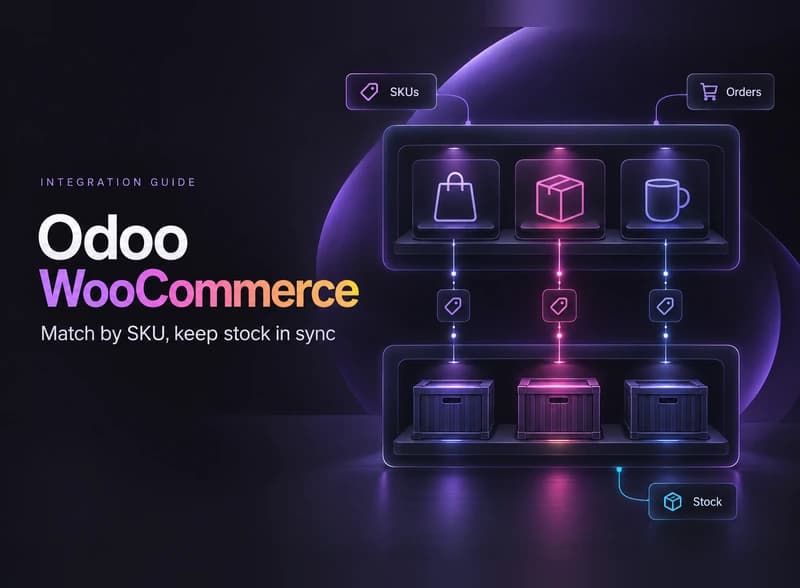
An Odoo WooCommerce integration moves data between your online store and Odoo, so both show the same facts. Odoo is business software that can hold your inventory, sales orders, invoices and customer records in one system.
The WooCommerce connector from Emipro Technologies on the Odoo Apps Store is one example. It lists orders, customers, inventory, order status updates, prices from Odoo pricelists, tracking numbers, refunds, and product, category and tag import and export. That list is a good guide to what a typical integration covers.

| Data | Usual direction | Why it matters |
|---|---|---|
| Products and SKUs | Either way, one system leads | Both systems agree on what each item is |
| Stock levels | Odoo to WooCommerce | Stops the store selling items you do not have |
| Prices | Odoo to WooCommerce | One place to maintain pricelists |
| Orders | WooCommerce to Odoo | Sales and the warehouse see every web order |
| Customers | WooCommerce to Odoo | One contact record for sales and invoices |
| Shipping status and tracking | Odoo to WooCommerce | Customers see delivery updates |
| Cancellations and refunds | Both ways | Keeps the books correct after changes |
A common choice is Odoo as the owner of stock and prices, and WooCommerce as the owner of orders and customers. Your setup may differ.
There are three ways to connect Odoo to WooCommerce: a connector app, an automation tool, or custom code. Start with the simplest one that covers your real workflow, and move up only when it does not.
| Method | Best for | Watch out for |
|---|---|---|
| Connector app, such as Emipro’s WooCommerce connector | Standard product, stock, order and refund flows, and several WooCommerce stores on one Odoo database | It is a paid third-party app, each Odoo version of it is sold separately, and it needs hosting that can run Apps Store modules |
| Automation tool, such as Zapier or Pabbly Connect | Light flows, for example a new WooCommerce customer creating a lead in Odoo | Zapier’s Odoo app is Odoo CRM, and the Odoo actions on its WooCommerce page cover leads and contacts, so stock sync is not among them |
| Custom code | Custom fields, several warehouses, approval rules, or full control over errors and logging | Build and maintenance cost, so it needs documentation and tests, and it has to follow Odoo’s API changes |
If a connector covers your flows, use it. There is no point paying for custom development to rebuild what a ready-made app already does.
Custom code starts to pay off when your process does not fit the standard one. Typical triggers are custom fields or modules in Odoo, stock held in several warehouses with different rules, or an approval step before an order is confirmed.
If you are still choosing a store platform, you could also skip WooCommerce. Odoo’s documentation describes Odoo eCommerce as an open-source platform for building and managing an online store. Keep WooCommerce when you already have a store, WordPress content or plugins you rely on, because moving all of that is a project of its own.
It depends on where Odoo runs, because hosting decides which connection methods you can use. Odoo’s documentation says Odoo Online is incompatible with custom modules or modules from the Odoo Apps Store. A connector app is one of those modules, so it cannot be installed there.
| Where Odoo runs | Connector app from the Apps Store | Direct connection through Odoo’s API |
|---|---|---|
| Odoo Online | No, according to Odoo’s documentation | Only on a Custom Odoo pricing plan. The API documentation says it is not available on One App Free or Standard plans |
| Odoo.sh | Yes. Odoo’s documentation describes adding community or custom modules to a branch of your GitHub repository | Ask Odoo to confirm it for your contract, because the documentation ties API access to pricing plans |
| On-premise | Yes. Emipro’s connector lists on-premise installs as supported | Same question for your contract |
This is based on Odoo’s 19.0 documentation, checked in October 2026. Do this check before you pay for a connector or ask for quotes, because it can rule out the easy option.
For custom code, Odoo 19 added the JSON-2 API, which uses an API key sent with each request. Odoo’s documentation says the older XML-RPC and JSON-RPC endpoints are scheduled for removal in Odoo 22 (fall 2028) and Odoo Online 21.1 (winter 2027), and names JSON-2 as the replacement. Anything built on the old endpoints will need to move, so ask every provider which API it uses.
To set up an Odoo WooCommerce integration, check your Odoo hosting, decide which system owns each type of data, create secure access on both sides, map your products by SKU, build the stock and order flows, add a check that compares both systems, and test on a copy before going live. The steps below follow that order.
Find out whether you run Odoo Online, Odoo.sh or an on-premise install, and which plan or contract you have. That answer decides whether a connector app or direct API access is possible.
Write down which system wins for products, prices, stock, orders, customers and shipping status. When two systems can change the same field, they eventually disagree, so give each field one owner.
In WooCommerce, the REST API documentation says pretty permalinks must be on, because default permalinks will not work, and it recommends HTTPS. Create the API keys for a dedicated WordPress user, since the keys follow that user’s roles, and choose Read, Write or Read/Write access to match the job.
In Odoo, create the API key for a dedicated user with only the access rights the sync needs. Odoo’s documentation says keys cannot last longer than three months, so put a key rotation date in someone’s calendar.
List how a WooCommerce record becomes an Odoo record. Odoo’s Internal Reference field and WooCommerce’s SKU field, the unique code for each product, are the usual match, and Emipro’s connector matches products on exactly that pair. Make every SKU unique on both sides, and map taxes, shipping methods, payment methods and warehouses. A rushed map shows up later as orders that land in the wrong place.
First decide which Odoo number the store may sell. Odoo’s stock report shows On Hand, Free to Use, Incoming and Outgoing, and defines Free to Use as on-hand stock that is not reserved for delivery or manufacturing orders. Pick one rule, then test it with a confirmed order that has not been reserved yet, to see what number the store would show.
Then update only the WooCommerce products that match by SKU, and skip the rest. WooCommerce tracks quantity only for products with stock management switched on, and the API leaves that off by default, so check it on every product you sync.
Use a WooCommerce webhook, a message the store sends to another system when something happens, to start the flow when an order is created or changes. Each order should create or find the customer and create a sales order in Odoo. Store the WooCommerce order number on the Odoo record, so that if the same order arrives twice, your code can see it already exists and skip it.
Read orders through the REST API, not straight from the database. WooCommerce’s High-Performance Order Storage has been on by default for new stores since WooCommerce 8.2 in October 2023, and it keeps order data in dedicated tables instead of the posts tables.
When Odoo ships an order, send the tracking details to WooCommerce so the customer is notified. Handle cancellations and refunds in both directions, each as its own small flow with its own tests.
WooCommerce disables a webhook automatically after more than five consecutive delivery failures, and counts any answer that is not a 2xx, 301 or 302 as a failure. If Odoo is down during an upgrade, the webhook can switch itself off and new orders stop reaching Odoo until someone turns it back on. Add a scheduled job that compares recent orders and stock in both systems and reports any difference.
Then test on a copy of your Odoo database and a staging copy of the store, with writes off first. Run the first live week with alerts on, and watch every error.
Web25 built a custom WooCommerce and POHODA integration for Mirael3D, a store selling 3D-printing filament. It is not an Odoo project, because POHODA is accounting software popular in Slovakia and Czechia. The WooCommerce side is the same kind of work, with stock flowing one way and orders the other.
The Mirael3D POHODA case study shows what mattered in practice:
This is one project on one pair of systems, so treat it as an example of method. Odoo has its own stock numbers and its own quirks, which is why step 5 starts with a test.
There is no honest single price, because the cost depends on a handful of factors you can list before you ask for a quote. A standard connector setup is a small job, and a custom sync with unusual rules is a larger one.
| Factor | Pushes the cost up when |
|---|---|
| Number of flows | You sync products, stock, prices, orders, shipping status and refunds, not just orders |
| Odoo hosting and plan | Your hosting rules out a connector app, so a direct API connection is the only route |
| Custom fields and modules | Odoo has custom fields or modules that the standard flow ignores |
| Warehouses and stores | Stock sits in several warehouses, or several WooCommerce stores share one Odoo database |
| Catalog and order volume | A large catalog or high order volume needs careful scheduling |
| Method | A connector is a paid app that is bought again for each Odoo version, while custom code adds build and maintenance work |
| Monitoring | You want alerts, key rotation and someone to fix issues after launch |
Budget for the time after launch as well. An integration touches money and stock, so it needs monitoring, and our guide to website maintenance packages covers how ongoing care is usually priced.
Most failures trace back to a check nobody made before launch.
Web25 is our agency, and it does not build Odoo integrations. This guide is here to help you choose well, not to sell you a project.
For the Odoo side, use an Odoo partner or a ready connector. An Odoo partner knows your Odoo version, hosting and modules, and those decide most of this project. A connector covers standard flows if your hosting can run it.
Web25 builds WooCommerce stores and custom API integrations between online stores and business software, like the WooCommerce and POHODA sync above, and keeps them monitored afterward. Our backend and API service page explains how we work. The general method is in our guide to custom API integration services, and the Shopify NetSuite integration guide walks through another pairing in detail. If your books are in Xero, read the Xero WooCommerce integration guide. If your ERP is NetSuite, read the NetSuite WooCommerce integration guide. If your ERP is Microsoft Dynamics 365, read the Dynamics 365 ecommerce integration guide.
Not always. On Odoo.sh or on-premise, with standard flows, a connector app can handle products, stock, orders and refunds through setup screens, although someone still has to install and test it. You need a developer when you are on Odoo Online, when you have custom fields or approval rules, or when you want your own logging and error handling.
Emipro's connector page says its app works with Odoo Enterprise, both on-premise and on Odoo.sh, and with Community. It does not install on Odoo Online. Other connectors differ, so read the compatibility list for the exact app and Odoo version you plan to buy before you commit to it.
Yes. Emipro's connector page says you can connect as many WooCommerce stores as you want to a single Odoo instance, with a pricelist mapped per store. With custom code you can do the same by keeping store-specific rules in a configuration layer, as we did in the Mirael3D project, so a new store means new settings rather than a new build.
There is no single right interval. It depends on how fast your stock moves and how costly an oversell is. Connectors such as Emipro's update stock manually or through scheduled actions. Fast-moving items with small stock need frequent updates, and slow items do not. Whatever you choose, subtract committed orders from the quantity you send, so a delay cannot sell the last unit twice.
Ask which Odoo version and hosting they support, which Odoo API they use, how they test before going live, who owns the code and the API keys, and who watches the sync afterward. Ask to see Odoo work as well. A copy of your database plus a dry run is a good answer to the testing question.
Plan to update it. Emipro's FAQ says each version of its connector is sold separately, starting from version 13. Odoo's older XML-RPC and JSON-RPC endpoints are also scheduled for removal, so custom code that uses them has to move to JSON-2. Test the new Odoo version on a copy of your database, with the integration switched on, before you upgrade production.
Find out where your Odoo runs and which plan you have, then list the flows you need: products, stock, orders and shipping status. Those two answers tell you whether a connector is possible. Take them to your Odoo partner or connector vendor, together with the questions in the FAQ above.
Written by Adam Khaled, Founder, Web25. Last updated October 2026.

Agentic SEO means AI agents doing SEO work, not just suggesting it. What it is, what Google allows, the real risks, and when a small site should skip it.
Optimize WordPress for AI search in 8 checks: the Reading setting, robots.txt, bot-blocking hosts, one schema plugin, page builders, sitemaps and llms.txt.
Dynamics 365 ecommerce integration, step by step: find out which Dynamics 365 you run, pick a connector or custom API, plan for API limits and test first.